
Videohive Travel Map
 By
marcobelli
By
marcobelli
 View demo
Description
Travel Map
Travel Map is a template and script for Adobe After Effects, compatible with CC 2014 and all subsequent versions. It is the ideal solution if you want to show one or more routes on a map, as it allows you to create up to 4 routes simultaneously, unlike Map Route Generator. You can use it to show different routes to arrive at a certain point on the map or compare the travel times of multiple routes.
Features
- Full HD project
- Max animation duration: 5 minutes
- No plugins required
- Fully documented (video tutorials in English)
- Expressions universalized (works with all AE languages)
- Compatible with AE CC 2014 and above
- Easy and fast to customize
- Compatible with Mac and PC
- Free support
3D Vehicles
In addition to classic 2D trackers, Travel Map includes a set of 3D animated vehicles that do not require additional plugins. You can show the route of your last trip by bike, for example, by importing the map, drawing your route, and choosing the bike from the list of vehicles. Each vehicle can be freely customized, allowing you to change its color, size, or add text, logo, or image.
* The addition of texts or logos can only be done on the following vehicles: Airplane, Bus, Camper, School Bus, Ship, Truck, Van.
Switch Trackers
In some cases, you may need to replace one vehicle with another within the same route. For example, if your company deals with transports, you may want to show that the shipment initially travels on a plane, but then transfers to a truck, and a van is used to make it reach its final destination. With Travel Map, you can do it by pressing the "Switch Trackers" button and deciding which vehicle to use and when to use it.
Camera Animation
The Travel Map script also takes care of everything concerning the animation of the camera. You just have to decide which vehicles to follow, and the script will calculate the animation of the camera. There's only one thing that's up to you: use the corresponding slider to set or animate the zoom. You can also decide whether to follow your vehicles in parallel or rotate around them. If you prefer to animate the camera manually, no problem! Select the "Manual Camera" option and enjoy creating your own custom animation, adding new keyframes on the position and rotation of the camera.
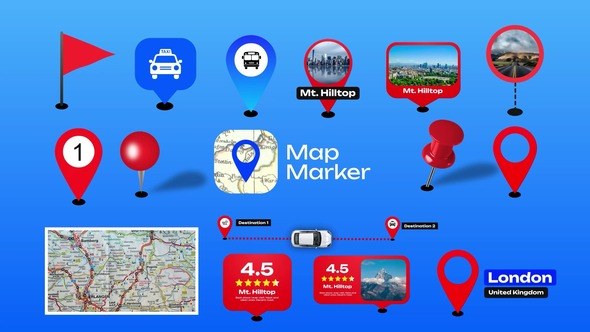
Add Pins
You can add as many pins as you want on your routes. Simply place the time indicator where you want your pin to appear and press the "Place Pin" button. The script will place the selected pin and a text file in the exact position of the vehicle. The color of each pin can be changed using a control panel.
Comparison with Map Route Generator
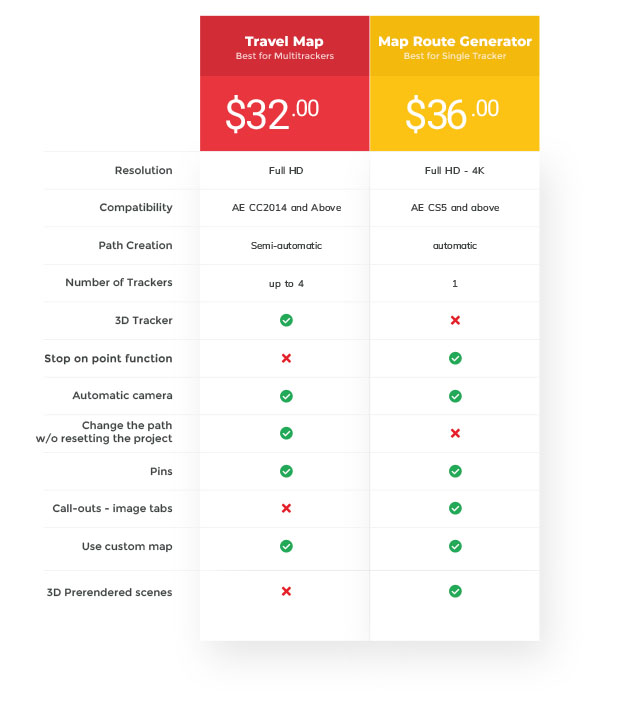
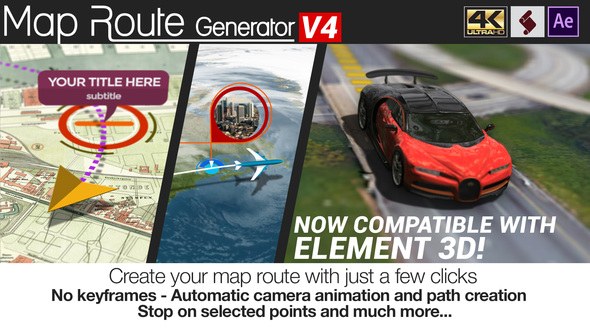
Travel Map and Map Route Generator share several options, but depending on the animation you need to realize, it is important to know their similarities and differences. Map Route Generator allows you to stop the tracker for the time you decide on selected points, while Travel Map does not have this function and the trackers start from point A and arrive to point B without intermediate stops. Map Route Generator allows you to create a single route, while Travel Map allows you to create up to 4 simultaneously. For a complete comparison between the two templates, refer to the comparison table here below.
Tutorial
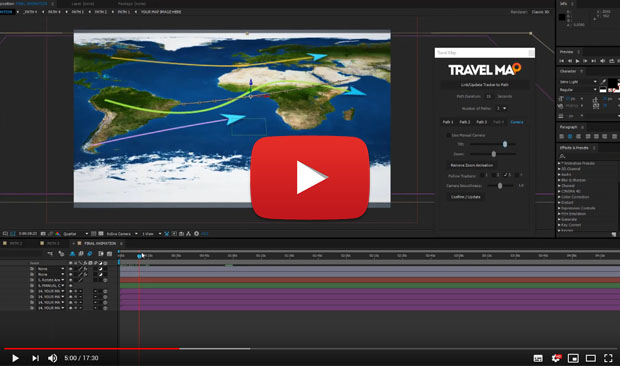
Are you a beginner with After Effects and unsure if you can customize this template, or do you want to see how it works before buying it? Don't worry, watch the video tutorial so you can decide for yourself whether Travel Map is within your reach or not.
Credits
The music used in the template preview is not included but can be purchased from https://audiojungle.net/item/energetic-upbeat-pop/20040701. Blue vector maps in this video preview have been downloaded from Vector illustration credit: Vecteezy!
Update 02.21.2020 - added train vehicles, fixed minor bugs

















Comments
Sign in to join the conversation.
No comments yet. Be the first to share your thoughts.